Setting up Mac for Web Development
You’ll need to install the following:
-
Homebrew - Package manager for OS X. You’ll be able to get it here Brew Site
-
Run the following commands:
-
brew update- Updates -
brew cask install iterm2- Iterm2 is macOS terminal replacement. Looks beautiful and is customizable -
brew install git- Well, you know why! -
brew install --cask rectangle- Run this if you are going to need multiple windows opened at the same time. This tool helps in moving and resizing windows in macOS using keyboard shortcuts or snap areas -
brew install --cask alfred- This a replacement for spotlight. You can customize and make Alfred do a lot of things. Take a look at their site and you’ll be blown away. -
Now you are going to need a friendly shell to help you in development. Install fish. It stands for friendly interactive shell. To install this, run
brew install fish -
Now change your default shell to fish. To do this, add the line
/usr/local/bin/fishto/etc/shells -
Change your default shell with
chsh -s /usr/local/bin/fish -
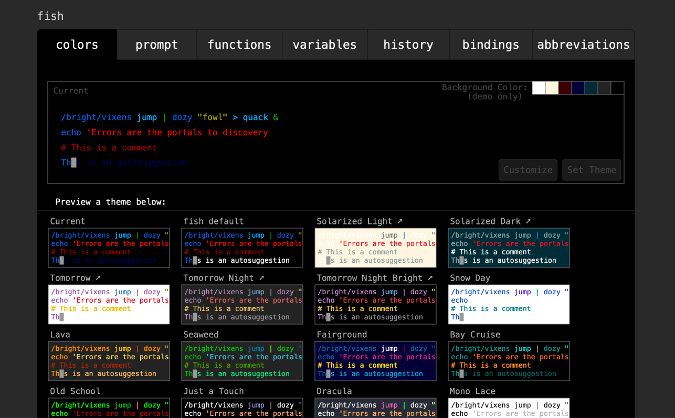
Fish ships with the fish_config command, which launches a graphical user interface (GUI) where you can choose different colors and prompt configurations
-
Now you’ll need a editor to code. Download VS Code from here
-
Open VS Code and enable code prompt by pressing Command + Shift + P or F1 then type
Shellin command palette now you are able to find this option likeShell Command : Install code in PATHfrom suggested list in command palette. Select that option. This will enable you to open VS Code directly from terminal

-
Next you need a good font. Install font Fira Code. You’ll find instructions here. This font contains a set of ligatures for common programming multi-character combinations. In simple words, multi-character symbols look more legible
-
After you install this font, update it in VS Code and in Iterm2 to make everything look prettier
-
VS Code extensions: Install these to make your life easier. GitLens, JavaScript Code Snippets, Prettier, Peacock, TODO Highlight, VS Code Icons. There are more but you might get overwhelmed. Start with these and eventually fellow developers will suggest you more extensions
-
Basic setup is done. Now you check if you have Chrome / Firefox installed. What’s the point of web development when there’s no browser? 😝
-
Now run
brew install nodeto install node.js
Phew! that was a long list. Now, install your favourite framework and start developing 👾👾👾